IPTV EPG TV Guide Explained: Fix a Missing Guide
Few things are more frustrating than opening live TV and finding blank rows where the listings should be. This guide covers the IPTV EPG TV guide explained in plain terms: what the guide is, where its data comes from and, most importantly, how to fix a missing or wrong guide on the devices most people use in the UK and Ireland. Most guide problems take a few minutes to solve once you know where to look.
What is an EPG?
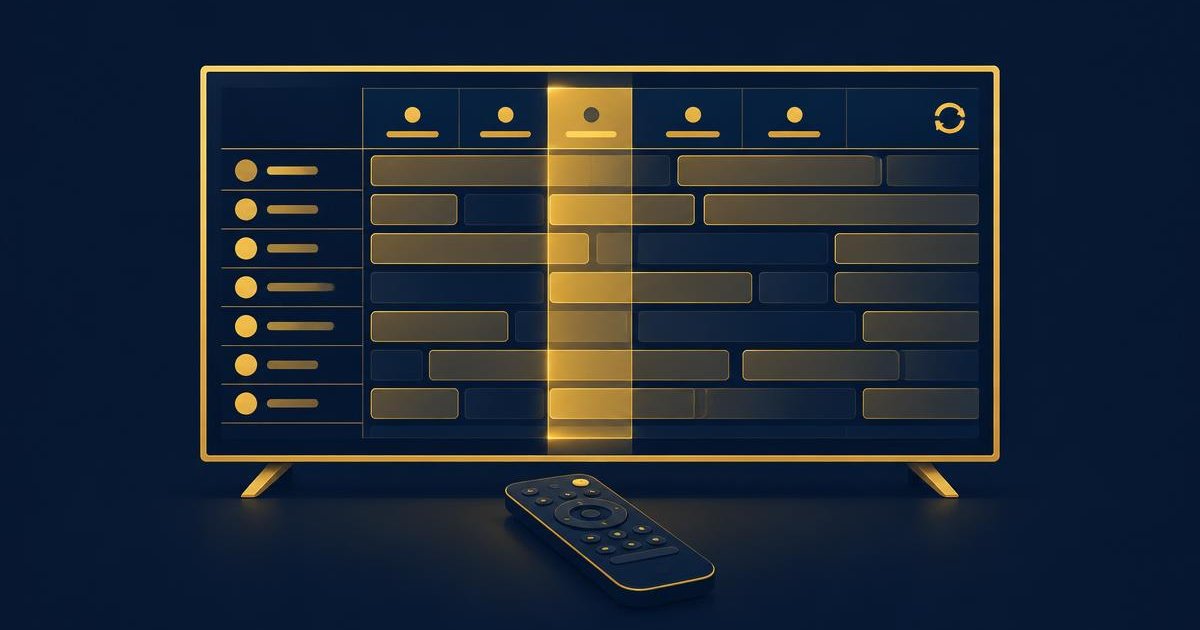
EPG stands for electronic programme guide. It is the grid you scroll through to see what is showing now, what comes next and what is scheduled later in the day. In an IPTV player, the guide sits alongside the channel list and lets you browse live TV, sports, news and kids content by time rather than by guessing.
A good guide does more than show titles. Depending on the player, it can display short programme descriptions, let you set reminders, and open catch-up for earlier programmes where the service and app support it. You can read more about how content is grouped on our channels page.
How the guide reaches your screen
The important thing to understand is that channels and guide data arrive separately. When you log in, the player downloads two things:
- The channel list, which tells the app which streams exist and how to play them.
- The guide data, a large schedule file that matches programme information to each channel using an identifier.
The player then stores the guide data on your device and lines it up with each channel. If either the download or the matching fails, the channels still play but the guide shows empty rows, "No information" or the wrong programmes.
Xtream Codes vs M3U: why it matters for the guide
How you log in affects how the guide is loaded.
| Login method | How the guide is loaded | Typical guide issue |
|---|---|---|
| Xtream Codes (username, password, server) | Usually loaded automatically with the account | Guide not yet downloaded after first login |
| M3U playlist link | Often needs a separate guide address added manually | Guide address missing or mistyped |
| Provider app with built-in login | Handled by the app | Cached data out of date |
If you are free to choose, Xtream Codes login tends to be the simplest option because the guide comes with the account. Our installation guide shows the login steps for each supported device.
Common reasons the TV guide is missing
Before changing settings, it helps to know the usual culprits:
- The guide has not finished downloading. The first load can take several minutes, especially on older streaming sticks.
- No guide address is set. Common with M3U logins, where the playlist and guide are entered separately.
- Out-of-date cache. The app is showing old data that has expired, so recent days appear blank.
- Wrong date, time or time zone. The listings exist, but the device is looking at the wrong hour or day.
- Low storage or memory. Guide files are large; a nearly full device may fail to save them.
- A weak or interrupted connection during the download, leaving a partial file.
How to fix a missing TV guide: step by step
Work through these steps in order. Most people find the guide returns by step three or four.
- Wait a few minutes after logging in. Leave the app open on the home screen so the first guide download can finish.
- Run a manual guide refresh. Look for options such as "Update EPG", "Refresh TV guide" or "Reload" in the app's settings or home screen, then wait for it to complete.
- Check the date, time and time zone. In your device settings, turn on automatic date and time and select the correct time zone for the UK or Ireland.
- Confirm the guide source. With an M3U login, make sure a guide address is entered and has no extra spaces. If you do not have one, ask our team on WhatsApp.
- Clear the app cache. On Android-based devices, go to Settings, Applications, choose the player and select Clear cache. Avoid "Clear data" unless you are happy to log in again.
- Free up storage. Remove apps you no longer use so the guide file has room to save.
- Restart the device and router. Unplug both for about 30 seconds, then reconnect and open the player again.
- Log out and back in. As a last step, remove the playlist from the player, add it again and allow the guide to download from scratch.
Fixing guide problems on popular devices
Firestick and Android TV
Guide refresh options are usually under the app's settings, in a section labelled for the TV guide or EPG. Set automatic updates to once a day. If the guide keeps disappearing, clearing the cache and checking free storage is especially worthwhile on smaller sticks. See our Firestick setup guide for the full first-run settings.
TiviMate
TiviMate keeps guide sources under its playlist settings, where you can see when the data was last updated and trigger a manual refresh. You can also set how many days of listings to keep. Our TiviMate setup guide walks through these options in detail.
IPTV Smarters Pro
In Smarters Pro, the home screen typically offers an option to reload the TV guide after login. If the guide view is empty, run that refresh and wait until the progress indicator finishes. The IPTV Smarters Pro setup guide covers this step with screenshots described in text.
When the guide shows the wrong programmes
Sometimes the guide loads but does not match what is on screen. That usually falls into one of three patterns:
Times shifted by an hour
This is almost always a clock or time zone issue, and it is common around the clock changes in spring and autumn. Set the device to automatic time, then check the player for a "guide offset" or "time shift" option and reset it to zero.
Programmes belong to a different channel
When listings appear on the wrong channel, the player has matched guide data to the wrong identifier. A full guide refresh usually corrects it. If one specific channel stays wrong after a refresh, tell our support team the channel group and position so it can be checked.
Only some channels have listings
Not every channel carries full schedule information; some international or event-based channels may show limited data. That is normal and does not affect playback.
Keeping your guide reliable
A few habits stop most guide problems returning:
- Keep automatic guide updates switched on, ideally daily.
- Update your player app when an update is offered through the official store.
- Leave a sensible amount of free storage on the device.
- Use a wired connection or strong Wi-Fi where possible; our IPTV buffering fixes explain how to improve home networks.
- Restart streaming sticks occasionally rather than leaving them on standby for weeks.
Frequently asked questions
What does EPG stand for?
EPG stands for electronic programme guide. It is the on-screen TV guide that shows what is on now and next for each live channel, usually as a grid with times along the top and channels down the side.
Why do my channels play but the TV guide is empty?
Channels and guide data are delivered separately. If streams play but the guide is blank, the player usually has not downloaded the guide yet, the guide address is missing, or the stored data has gone out of date. A manual refresh fixes most cases.
How often should the TV guide update?
A daily automatic update suits most homes. Many players let you choose the interval in their settings. If you watch mostly live TV, keep automatic updates switched on and run a manual refresh whenever listings look stale.
Why are programme times an hour out?
A time shift normally comes from the device clock, the time zone setting or a guide offset in the player. Set the device to automatic date and time with the correct UK or Ireland time zone, then reset any manual guide offset to zero.
Does a missing guide mean my subscription has stopped?
Not usually. If live channels still play, your account is active and the problem is limited to guide data. If both channels and guide stop at the same time, check your login details or contact support on WhatsApp.
Conclusion
A missing TV guide is rarely a sign of a deeper fault. Because the guide and the channels arrive separately, a refresh, a quick check of the time settings or a cache clear usually brings the listings back. Once automatic updates are set, you can browse live TV, sports, news and kids content by time with confidence.
If you are still choosing a subscription, compare our plans on the pricing page. If your guide still will not load after these steps, message us on WhatsApp and our team will help you sort it out.